This article guides you through the process of updating files and file-related information in Templafy Library.
There are two different types of updates that can be conducted:
- Updating the file information (name, description, and tags).
- Updating/Replacing the file itself.
Important
- Character limit for the Name field is: 100 characters.
- Character limit for the Description field is: 250 characters.
|
How to update the file information
- Navigate to the Library where the file is located.
- Select the file that you want to edit.
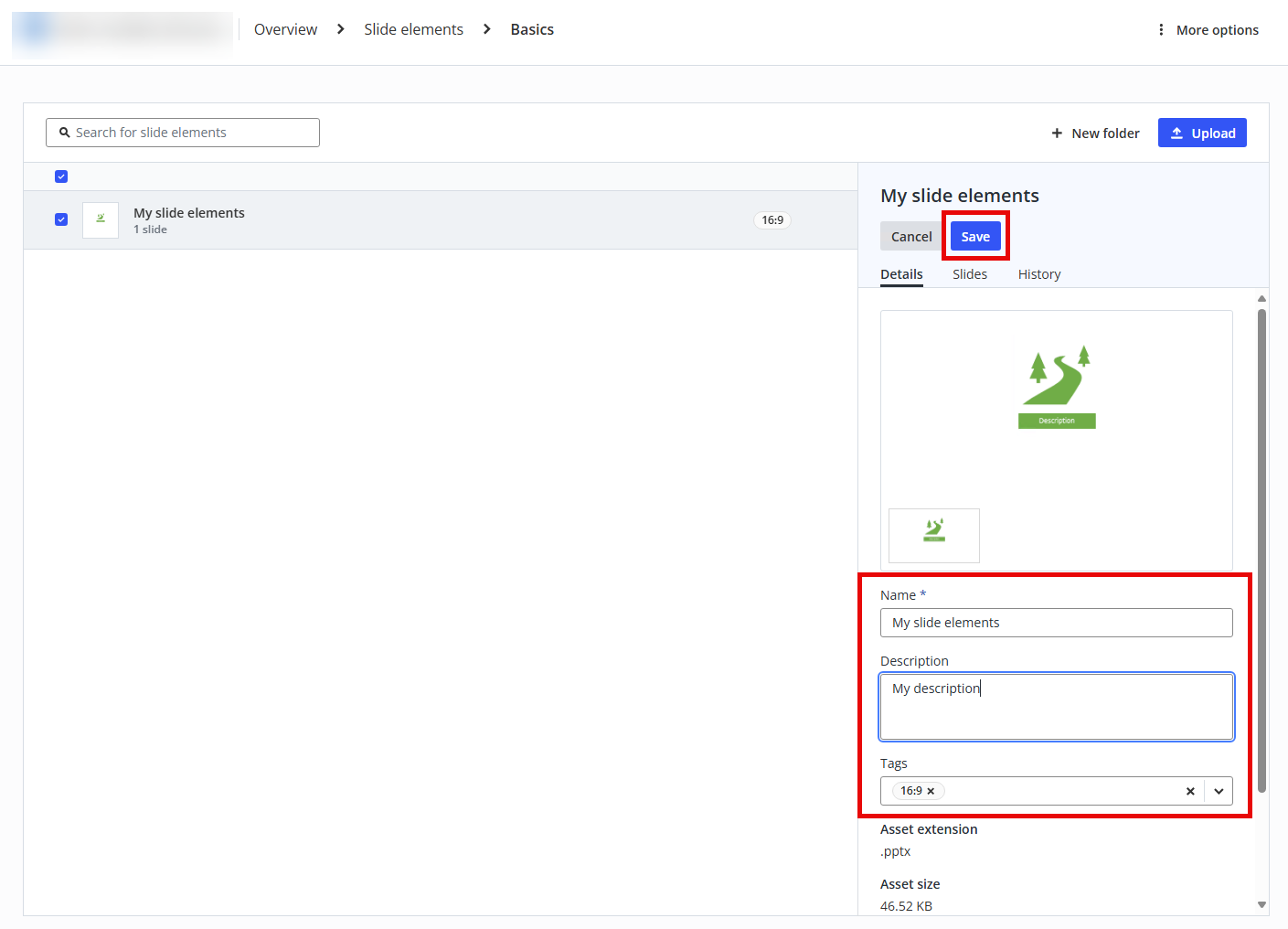
- Make your edits in the side pane.
- Click Save:
Note
- For Slides and Slide elements, both the name and tags in the Details and Slide tabs will be suggested.
-
Slide and slide element name is automatically added by Templafy when no title can be found upon upload and will be excluded from the suggestions.
|
How to update (replace) a file
Important
The asset being replaced will be unavailable for users while the replace action is processing. The duration of the processing time depends on the size of the asset and the number of previews being generated.
|
- Navigate to the Library where the file is located.
- Select the file that you would like to update (replace).
- In the side pane, hit Download.
- Make your changes in the file (in the Office Application).
- Save your modified file in the Office Application.
- Return to the Admin Center and to the file in the Library from where you started.
- In the side pane, in the ellipsis menu, select Replace:
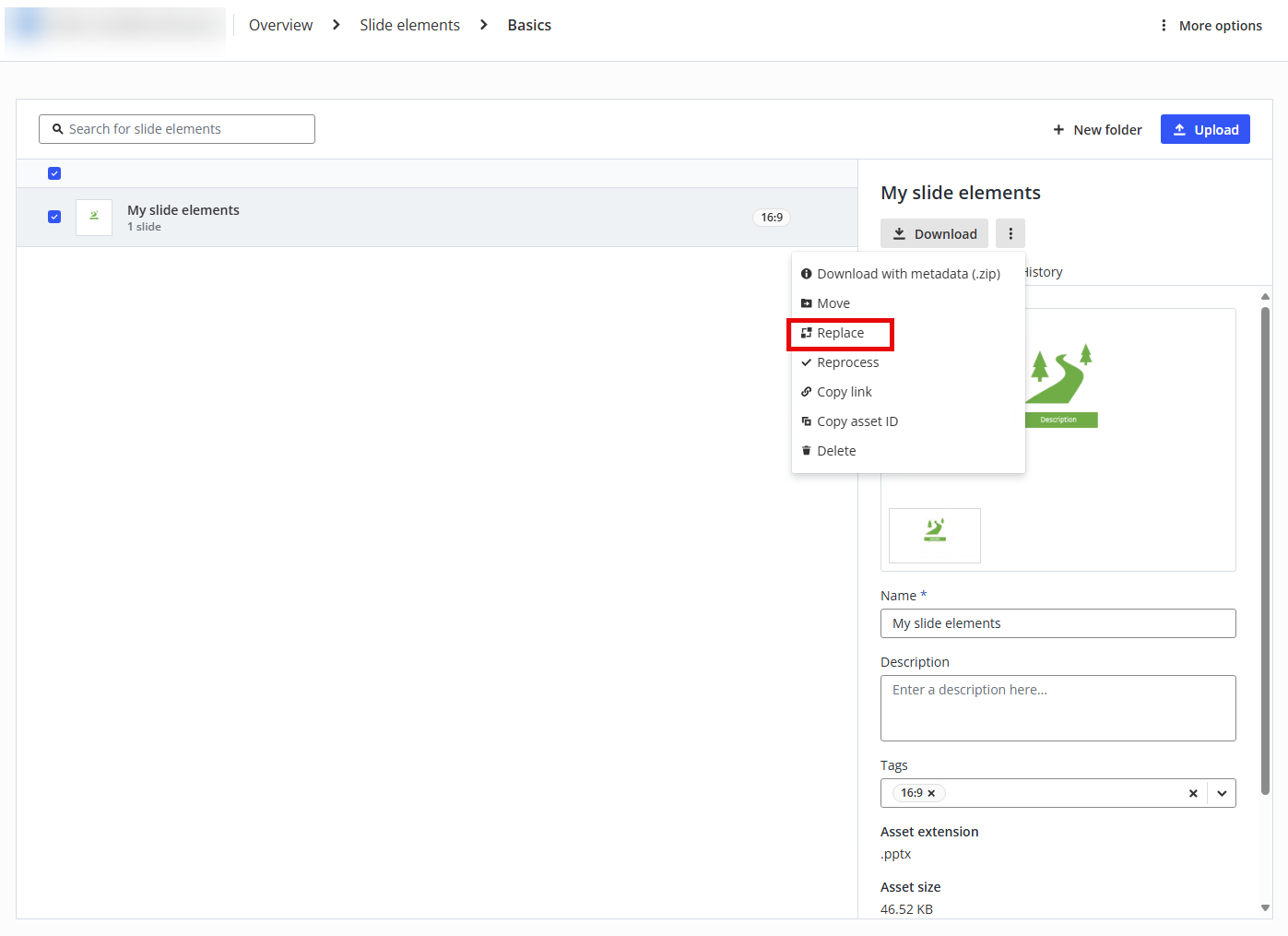
- The file has been replaced with the modified version.
Tip
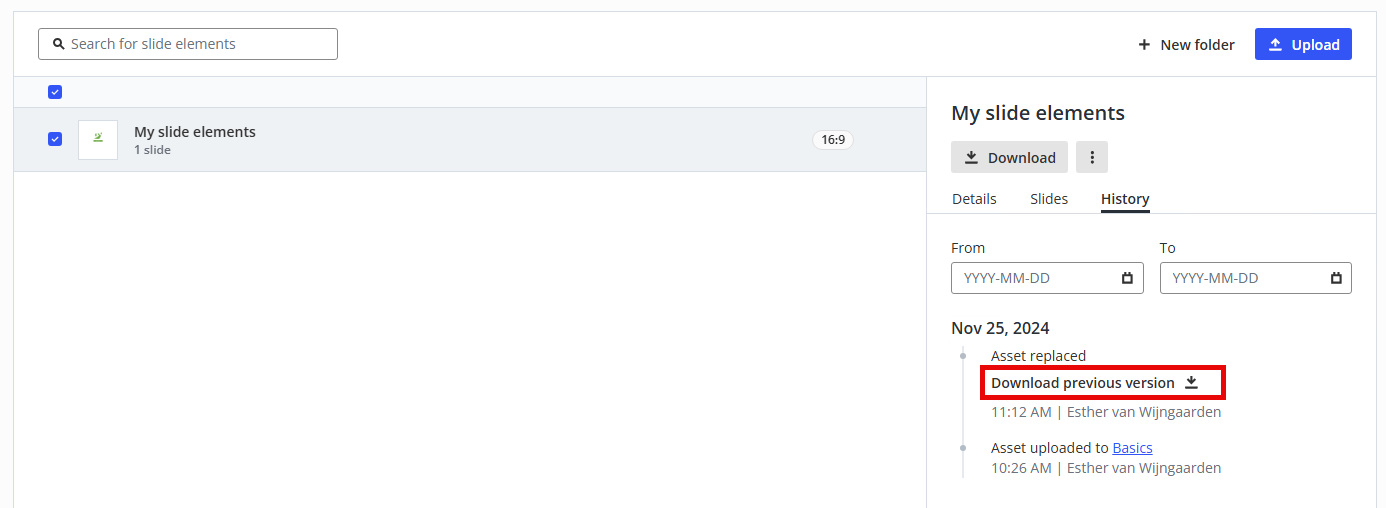
Previous versions of templates and assets can be downloaded from the activity log and the asset history by clicking the Download previous version button on the History tab:
|
Note
- Tags attached to a file (on the Details tab) will not be affected in the process of replacing that file.
- To maintain slide tags upon editing a presentation, download the latest version from the Admin Center using Download with metadata (.zip) and make changes to the presentation.
- Description, tags, and slide names will be removed if a presentation is downloaded and uploaded as a new file within Templafy. To keep the existing properties, ensure to Download with metadata (.zip) before uploading.
|
Comments
Article is closed for comments.